AI Artwork and Printing
AI-generated artwork delivers stunning results on screen, but achieving that same quality in print requires understanding one critical difference — resolution. Most AI tools optimize for digital display instead of physical products, and transforming screen-ready images into print-ready files takes a few additional steps.
If you’ve created beautiful AI artwork and want to put it on a tote bag, tea towel or custom merchandise, your secret to success lies in knowing how to print AI artwork at a quality that matches your vision.
Start With a Print-Ready Prompt
The prompt stage lays the groundwork for sharp output. A well-structured prompt anticipates how the design will translate onto fabric and incorporates specifications that favor direct-to-garment printing.
The best prompts for printable AI art include these elements — [Subject] + [Style] + [Details] + [Technical Specs] + [What to Avoid].
Each element serves a different purpose in preparing your design for fabric output, so you should include them in every prompt to set your artwork up for success.
- Style specifications: Specifying the style using “vector illustration,” “flat design” or “bold, clean lines” creates sharper edges that reproduce better through DTG production.
- Color direction: Fabric absorbs ink differently than screens display light, so neon and highly saturated colors tend to look more muted on cotton.
- Composition guidance: Including “centered subject” or “open space near edges” in your prompt ensures the focal point stays intact when you position the design on a tote bag or tea towel. These prompts anticipate the physical product and build in margin for error.
Negative Prompts That Protect Your Design
Negative prompts tell the AI what to exclude, and they’re especially valuable for print applications. Examples include “no text,” “no watermarks,” “no signatures,” “no background clutter” and “isolated on white background.”
AI-generated text can struggle with correct spelling, leading to garbled letters that reduce the quality of the finished product. That’s why it’s an industry best practice to add text to your design separately in Photoshop, Canva or similar software after generating your image. Instead of relying on the AI to interpret your text prompt correctly, you’ll have complete control over font, spacing and spelling.
Exclude watermarks and signatures from the start to cut editing time. Complex backgrounds add extra steps to transparency removal, which is why “isolated on white background” or “transparent background” prep for DTG significantly cleans up PNG file prep. You get a design ready for placement, rather than one that requires extensive masking.
Generate Your Image at the Right Resolution
Resolution determines whether your print looks sharp or pixelated. Starting with adequate pixel density serves as the baseline for professional results — 300 dots per inch is the professional print standard for clear, detailed output. When you understand the math behind this standard, you can target the correct image size from the beginning.
Many AI generators create images around 1,024 by 1,024 pixels, which equals approximately 3.4 inches by 3.4 inches at 300 DPI. That’s smaller than ideal for most cotton products. The calculation is straightforward — divide your pixel dimensions by 300 to find your maximum safe print inches. A 2,400-pixel image divided by 300 equals 8 printable inches.
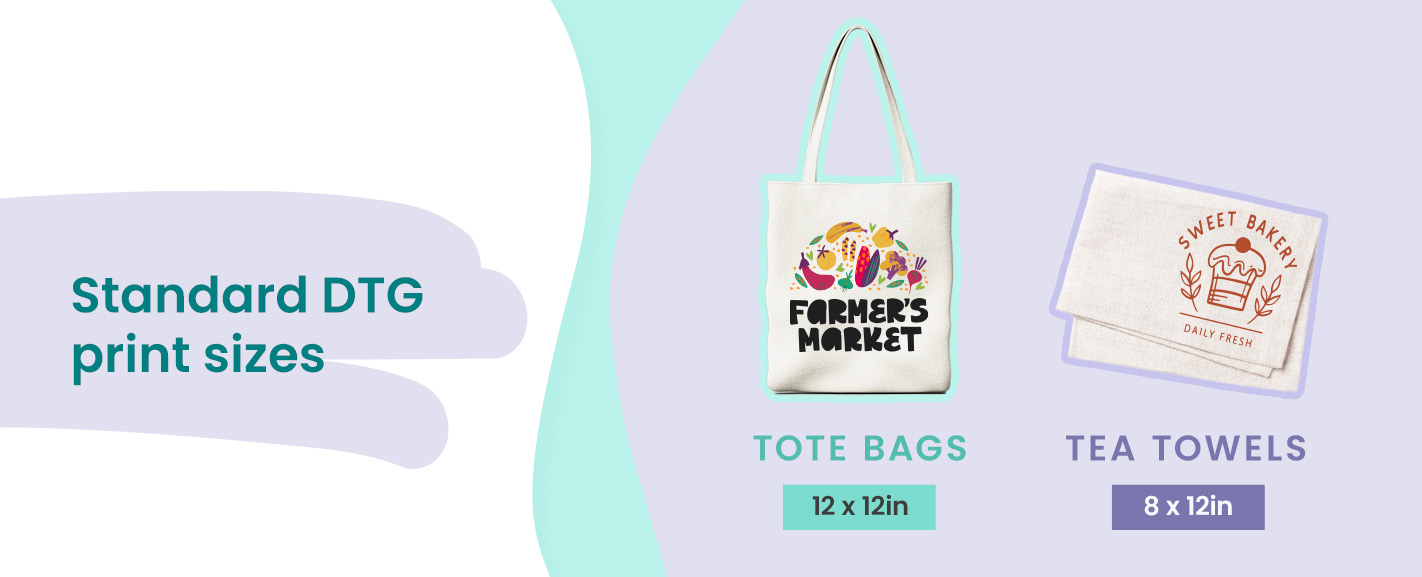
Standard DTG print sizes for most tote bags measure 12 inches by 12 inches, while tea towels typically accommodate 8 inches by 12 inches. Use these dimensions as generation targets.
Always select the highest-resolution option available in the AI tool. Maximum native resolution gives you the best foundation if you need scaling work later.
Upscale Your AI Image
You’ll need to upscale when your native output is too small for the intended print size. Having realistic expectations matters here — enlarging amplifies what’s already in the image rather than inventing new detail.
Conservative scaling factors yield clean, reliable results in most cases. Larger jumps can work, but aggressive expansion sometimes creates an over-smoothed or plasticky result that becomes visible in print. Faces, text and fine lines are especially sensitive to over-enlargement. When you’re working with upscaling AI images for print, matching the intensity to your source quality delivers the best outcomes.
The Best Tools for Upscaling AI Images for Print
Each upscaling tool offers distinct advantages depending on your source material and budget.
- Topaz Gigapixel AI: Delivers well-rounded accuracy for faces and fine detail. This desktop app for Windows and Mac processes RAW files and handles conservative to moderate scaling with strong edge preservation.
- Adobe Super Resolution: Comes included with the Creative Cloud Photography plan at around $20 per month, making it the fastest workflow if you already use Lightroom or Photoshop. Results are reliable, with seamless integration that eliminates one file export step.
- Upscayl: Offers a good free option for patterns, illustrations and non-portrait subjects. This open-source desktop app runs locally with no subscription or upload required, giving you complete control over your files.
- Magnific AI: Creates visually impressive, impactful results but can introduce synthesized detail that wasn’t in the original. Choose a different option if your print quality depends on faithful reproduction of your source file.
Optimize Your AI-Generated Designs Before You Submit
When you print AI artwork on custom merchandise, your file preparation determines whether the final product will match your expectations. Your final pre-submission checklist should cover color mode, file format, background treatment and a quick artifact check. Each requirement exists for a specific technical reason that affects how your design translates to fabric.
- Color mode: Working in RGB color mode is ideal for DTG printing because DTG printers process red, green and blue data even when using CMYK inks. Neon and highly saturated colors will appear more muted on fabric regardless of color mode, but RGB maintains compatibility with the printer’s workflow.
- Format and transparency: The best file formats for DTG include PNG with a transparent or pure white background as the preferred option, along with PSD or AI files with layers, TIFF and PDF. Remember, anything that isn’t pure white may appear as a faint tint on DTG. Transparent PNGs are the safest submission format because they remove the risk of unwanted background color.
- Artifact check: Zoom to 100% before submitting and scan your image for artifacts such as distorted edges, garbled details and blurry sections. These AI-generated elements may not be noticeable in the thumbnail view, but become obvious at print size — you could avoid multiple rounds of revisions by catching these issues ahead of time. Also, standard file specifications list a maximum print size of 16 inches by 21 inches, so don’t upload your design until you confirm it fits within these dimensions.
Print Flawless AI Designs With Cotton Creations
Getting AI artwork print-ready takes planning, but the payoff can deliver professional results that match your vision. When you understand resolution requirements, use quality upscaling tools and optimize your files for DTG, you’re well on the way to getting clean, vibrant prints.
Cotton Creations handles the printing side with in-house DTG services, quality control and no minimum order requirements. Whether you’re printing AI art for custom tote bags, tea towels or other custom merchandise, you can upload your artwork and see how your AI-generated designs for print on demand translate to finished products.
Contact us today for inquiries.